
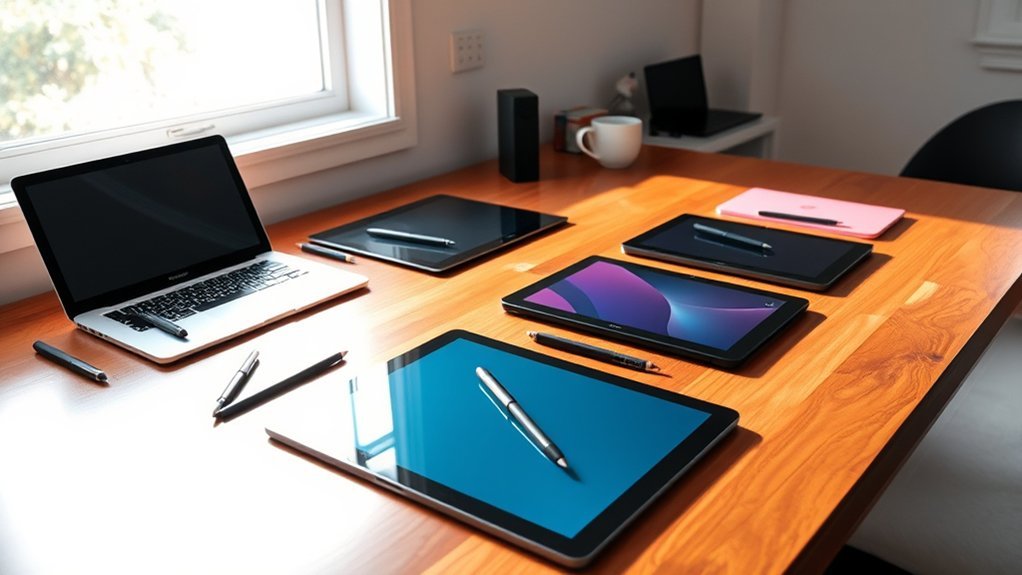
You’ll want a pen tablet that’s sleek, portable, and fully compatible with your MacBook Pro, offering precise stylus sensitivity and seamless connectivity. Options like the Wacom Intuos Small, XPPen Deco 01 V3, and HUION Kamvas Pro 16 V2 cover everything from compact portability to detailed, screen-based drawing.
Look for customizable workflow features, reliable driver support, and the right active area size to fit your creative style. Keep exploring to uncover which model truly fits your needs.
You’ve got plenty of great choices out there, so take your time and find the perfect match!
Wacom Intuos Small Graphics Drawing Tablet Black
The Wacom Intuos Small Graphics Drawing Tablet Black offers a natural and precise drawing experience that bridges the gap between traditional sketching and digital art. Its battery-free EMR pen provides smooth, accurate strokes with 4096 levels of pressure sensitivity, allowing for fine control and detail in every line.
With a compact 7-inch active area, this tablet suits users who value portability without sacrificing functionality. The four customizable ExpressKeys enable quick access to shortcuts, streamlining creative workflows. Its simple USB-A plug-and-play connection ensures fast setup across various devices.
Designed for versatility, the tablet supports macOS, Windows, Android, and Chromebook platforms, making it a flexible tool for different setups, including laptops like the MacBook Pro. Maintenance is minimal since the pen requires no batteries, reducing interruptions during use.
One limitation is the smaller drawing surface, which might feel restrictive for users who prefer a larger workspace. Also, the USB-A connection may need adapters for newer USB-C only devices. The tablet lacks a built-in display, so artists must view their work on a separate screen.
Best for: creatives seeking a precise, portable drawing tablet with broad device compatibility for everyday digital art and design.
What We Like:
- Battery-free EMR pen with 4096 levels of pressure sensitivity
- Compatible with Windows, macOS, Android, and Chromebook
- Customizable ExpressKeys for improved workflow
- Plug-and-play USB-A connection for easy setup
What We Don’t Like:
- 7-inch active area may be small for advanced users
- USB-A connection might require adapters for newer devices
- No built-in display, requiring use of an external screen
XPPen Deco 01 V3 Drawing Tablet with Stylus
The XPPen Deco 01 V3 drawing tablet offers a large workspace that helps artists and students focus on their creative projects without feeling cramped. Its 10 x 6.25-inch active area provides enough room for detailed sketches and precise lines. The tablet connects easily to MacBook Pro and other devices via USB-C, ensuring smooth compatibility with macOS 10.13 and above.
Designed for ease of use, the battery-free stylus delivers 16,384 pressure sensitivity levels and supports 60 degrees of tilt. This combination allows for natural drawing motions and fine control over brush strokes. The tablet’s slim profile and lightweight build make it convenient for users who need a portable drawing solution on the go.
Maintenance is simple since the tablet includes replacement nibs and a stylus stand, helping users keep their tools in good condition. The Deco 01 V3 also features eight customizable shortcut keys, which improve workflow by reducing repetitive tasks. Its ambidextrous design supports both right- and left-handed users comfortably.
While it lacks a built-in screen, requiring artists to look at their computer display while drawing, it remains a reliable choice for beginners and intermediate users. Professionals seeking higher resolution or color accuracy may want to explore other options.
Best for: Artists, students, and creative users who want a versatile, portable drawing tablet with strong compatibility and precise stylus performance.
What We Like:
- Large 10 x 6.25-inch active area for detailed work
- Battery-free stylus with 16,384 pressure levels and tilt support
- Eight customizable shortcut keys for improved efficiency
- Slim, lightweight design suitable for travel
- Includes replacement nibs and stylus stand for easy maintenance
What We Don’t Like:
- Requires USB-C adapters for older devices without USB-C ports
- No built-in display; requires looking at a separate screen
- Best suited for beginners and intermediate users, not advanced professionals
Apple Pencil Pro with Magnetic Charging and Precision
The Apple Pencil Pro redefines precision for creative professionals who need flawless control in their work. Its advanced tilt and pressure sensitivity respond instantly, making every stroke feel natural and accurate. This tool enhances your ability to draw, sketch, or take notes with unmatched responsiveness, reducing frustration and improving workflow.
Designed with a sleek, flat-edged body, the pencil magnetically attaches to compatible iPads. This smart design keeps the pencil charged and ready without extra cables or docks. Maintenance is simple, as the magnetic charging eliminates battery hassles and ensures the pencil is always at hand.
Unique to this model, intuitive gestures like squeeze and barrel roll allow you to switch tools quickly, while subtle haptic feedback gives tactile confirmation, improving control and precision. Hover functionality previews marks before drawing, helping reduce errors and boosting accuracy.
Lightweight and compatible with select iPad Pro, Air, and mini models, the Apple Pencil Pro fits seamlessly into any creative workflow. While it requires a compatible device and may take time to master its gestures, its integration and features offer tangible benefits for detailed digital work.
Best for: Creative professionals and artists seeking precision, responsiveness, and seamless tool integration for drawing, note-taking, and design on compatible iPads.
What We Like:
- Low-latency tilt and pressure sensitivity for natural drawing experience
- Magnetic attachment for wireless charging and convenient storage
- Intuitive gesture controls with haptic feedback enhance precision
- Hover preview improves accuracy before committing marks
What We Don’t Like:
- Limited compatibility with select iPad models
- Sold separately and requires a lithium-ion battery
- Gesture controls may have a learning curve for new users
BoxWave Stylus Pen for MacBook Pro 13
The BoxWave Stylus Pen offers a straightforward solution for MacBook Pro 13 users seeking precise touchscreen interaction without the hassle of Bluetooth or batteries. Its clear tip provides enhanced accuracy, making it easier to draw, write, or tap with confidence on the 13″ M1 MacBook Pro and other capacitive screens. This pen-shaped stylus fits naturally in hand, ensuring comfortable use during extended sessions.
Designed for convenience, the BoxWave Stylus features a built-in metal clip that easily attaches to clothing or cases, keeping it within reach whenever needed. Maintenance is simple since it requires no charging or pairing—just touch the screen to start working immediately. This makes it ideal for users who want reliable, no-fuss stylus functionality.
While the stylus excels in precision and portability, it lacks advanced features like palm rejection and pressure sensitivity. These limitations may affect artists or users needing detailed drawing capabilities. Despite these drawbacks, its lightweight design and intuitive use make it a practical tool for everyday tasks.
Best for: MacBook Pro 13″ (M1 2020) users and others needing a simple, precise stylus compatible with capacitive touchscreens without Bluetooth or battery concerns.
What We Like:
- Clear tip enhances precision and visibility.
- Comfortable pen-shaped design with a metal clip for portability.
- No batteries or Bluetooth pairing needed, ready to use immediately.
What We Don’t Like:
- No palm rejection, which may impact drawing accuracy.
- Lacks pressure sensitivity for detailed artwork.
- Limited third-party support and no specified extended warranty.
HUION Inspiroy H640P Digital Drawing Tablet
The HUION Inspiroy H640P is designed for those who need a compact and portable digital drawing tablet without sacrificing precision. Its 6×4 inch active area offers enough space for detailed work while keeping the device lightweight and easy to carry. This makes it a practical choice for artists, writers, and professionals on the move.
With 8192 levels of pressure sensitivity, the battery-free stylus delivers a smooth and natural drawing experience. The stylus includes side buttons, enhancing control and efficiency during creative tasks or note-taking. The tablet’s slim design fits comfortably into backpacks or laptop bags, making it convenient for remote work.
Maintenance is straightforward, with included accessories like extra nibs and a cleaning cloth helping to keep the tablet in good condition. It is compatible with popular software such as Photoshop and OneNote, ensuring a seamless transition into your existing workflow. However, it does not support iOS devices, which may limit use for iPhone or iPad users.
The HUION Inspiroy H640P allows users to customize six hotkeys, streamlining repetitive actions and improving productivity. While the active area might feel small for those used to larger tablets, its design focuses on portability and precision for users who prioritize these aspects.
Best for: Creatives and professionals seeking a precise, portable drawing tablet with customizable controls for everyday digital art and note-taking.
What We Like:
- Battery-free stylus with 8192 pressure levels and side buttons for precise input.
- Lightweight and ultra-slim design ideal for portability.
- Six customizable hotkeys to enhance workflow.
- Compatible with popular creative and educational software.
What We Don’t Like:
- Not compatible with iOS devices, limiting options for Apple mobile users.
- Smaller active area may be restrictive for some artists.
- Only a one-year warranty, shorter than some alternatives.
HUION HS610 Drawing Tablet with Battery-Free Stylus
The HUION HS610 drawing tablet is designed to enhance creativity with precision and ease. Its battery-free stylus delivers 8192 pressure levels and supports ±60° tilt, allowing you to create natural, fluid strokes without interruptions from charging. This feature ensures your drawing experience remains smooth and responsive.
With a 10×6.25-inch active area, the tablet provides enough space for detailed work while maintaining a compact design. Its 12 customizable shortcut keys and a multifunctional touch ring help streamline your workflow, letting you focus more on your art and less on tool adjustments. The tablet’s slim, lightweight build makes it easy to carry and set up wherever you work.
Connectivity options include USB and OTG adapter support, compatible with MacBook Pro, Windows, Android, and Linux devices. This versatility allows you to use the tablet across multiple platforms without hassle. The device is designed for straightforward maintenance with its durable surface and easy-to-clean components.
Overall, the HUION HS610 offers a practical solution for artists seeking a portable, precise drawing tool that fits various creative needs. Its combination of functionality and portability supports productive and comfortable digital artistry.
Best for: Artists, designers, and students needing a lightweight, portable drawing tablet with versatile compatibility and a battery-free stylus for natural, precise digital artwork.
What We Like:
- Battery-free stylus with high-pressure sensitivity and tilt support for accurate drawing
- Compatible with Windows, macOS, Android, and Linux via USB or OTG adapter
- Customizable shortcut keys and touch ring improve efficiency and workflow
What We Don’t Like:
- Active drawing area smaller than some professional tablets, limiting workspace
- No wireless connectivity, requiring wired USB or OTG connection
- Warranty limited to one year, which may be shorter than competitors’ offerings
GAOMON M10K 10×6 Inch Drawing Tablet
Discover the GAOMON M10K drawing tablet, designed to bring precision and ease to your digital art projects. Its large 10 x 6.25-inch active area provides ample space for detailed work, helping you create with greater accuracy and control. The surface features a papery texture that feels natural, reducing strain and enhancing your drawing experience.
This tablet uses a battery-free stylus with 8192 pressure sensitivity levels. This allows smooth, responsive strokes without the hassle of charging. The device is also equipped with 10 customizable hotkeys and a touch ring, designed to streamline your workflow and access shortcuts quickly.
The GAOMON M10K supports macOS 10.12+ and works seamlessly with popular creative software such as Photoshop and Krita. Its slim, lightweight design makes it easy to carry and fits neatly into any workspace. Maintenance involves occasional driver updates to ensure consistent performance.
While it offers strong functionality for desktop use, compatibility with Android devices is limited, and some users may find the hotkey options insufficient for complex workflows. Driver installation can also require attention for smooth operation.
Best for: Artists, designers, and students seeking a natural, precise, and portable drawing experience with a large working area on macOS and other compatible devices.
What We Like:
- Large, textured surface mimics real paper for detailed art.
- Battery-free stylus with high pressure sensitivity.
- Customizable hotkeys and touch ring improve workflow speed.
What We Don’t Like:
- Requires driver installation and occasional troubleshooting.
- Limited Android device compatibility.
- May lack enough hotkeys for users needing more shortcuts.
HUION 420 OSU Graphics Drawing Tablet with Stylus
The HUION 420 OSU Graphics Drawing Tablet with Stylus is designed to enhance your digital creativity with precision and ease. Its compact size fits comfortably in tight spaces, making it ideal for small desks or on-the-go use. You can draw, edit, and take notes smoothly within its 4 x 2.23-inch active area.
This tablet features a slim 7mm profile and weighs just 165g, combining portability with comfort. The stylus responds accurately thanks to 2048 pressure sensitivity levels, allowing detailed strokes and control. A customizable side button adds convenience during creative work.
Connecting the tablet is simple through a USB plug-and-play setup, compatible with Mac OS 10.12+, Windows 7+, and popular creative programs. The wireless pen runs on one AAA battery, which is easy to replace when needed, ensuring uninterrupted use.
To maintain the tablet’s performance, extra nibs are included to replace worn tips. While the device excels in portability and precision, its small drawing area may limit detailed or large-scale projects. It does not support iOS or Android systems, restricting its range of use.
Best for: Students, beginners, and artists seeking a budget-friendly, portable tablet for digital drawing and note-taking.
What We Like:
- Slim, lightweight design ideal for limited space and travel
- High pressure sensitivity with customizable side button for precise control
- Easy USB plug-and-play setup compatible with major desktop operating systems
What We Don’t Like:
- Small active area can feel restrictive for detailed artwork
- No support for iOS or Android devices
- Wireless pen requires occasional AAA battery replacement
HUION Kamvas Pro 16 V2 Drawing Tablet with Screen
The HUION Kamvas Pro 16 V2 is designed to bring precise color accuracy and a natural drawing experience to creative professionals. Its 15.6-inch full-laminated, anti-glare screen minimizes reflections, allowing you to work comfortably in various lighting conditions. The vibrant 120% sRGB color coverage ensures your visuals stay true to life and print-ready.
This pen display features the battery-free PW600A pen, offering 16,384 pressure levels and 60° tilt support. These capabilities provide smooth, responsive strokes that closely mimic traditional drawing and shading techniques. The pen requires no charging, reducing interruptions during long creative sessions.
The tablet’s customizable Express Keys and Smart Touch Bar enhance productivity by streamlining common commands. An ergonomic aluminum stand supports comfortable posture during extended use. Its slim profile and secure 3-in-1 cable help maintain a neat workspace, especially suitable for MacBook Pro users.
Maintenance is straightforward thanks to the durable screen and pen design, minimizing the need for frequent replacements or repairs. However, the Kamvas Pro 16 V2 requires connection to a computer, limiting portability for on-the-go use.
Best for: Creative professionals, students, and designers who need precise color accuracy and a natural drawing experience on a pen display connected to a computer.
What We Like:
- 15.6-inch full-laminated anti-glare screen with vibrant 120% sRGB color.
- Battery-free PW600A pen with high pressure sensitivity and tilt support.
- Customizable Express Keys and Smart Touch Bar improve workflow.
- Ergonomic aluminum stand for comfortable long sessions.
- Slim design with a secure 3-in-1 cable keeps the workspace tidy.
What We Don’t Like:
- Must be connected to a computer or laptop; not standalone.
- Heavier weight (around 3.22 kg) may reduce portability.
- Compatibility limited to certain operating systems, excluding older versions.
HUION H420X Digital Drawing Tablet with Stylus
The HUION H420X Digital Drawing Tablet offers a compact solution for artists and students who need precision without bulk. Its lightweight design, weighing just 167g, makes it easy to carry and ideal for small workspaces. The active area of 4.17×2.6 inches provides enough room for detailed sketches while maintaining portability.
This tablet features a battery-free stylus with 8192 levels of pressure sensitivity and 60° tilt support. These capabilities ensure smooth, accurate strokes, enhancing creative control. The stylus requires no charging, reducing interruptions during use and simplifying maintenance.
Designed for versatility, the H420X connects via USB-C with plug-and-play functionality, eliminating the need for driver installations. It supports multiple operating systems, including Mac OS 10.12+, Windows, and Android, and works seamlessly with popular design applications like Photoshop and Clip Studio Paint.
While the compact active area suits portability, it may feel restrictive for users who prefer larger drawing spaces. The stylus side buttons offer only basic customization, and the tablet is not compatible with iOS devices, which may limit some users.
Best for: Artists, students, and creative professionals needing a portable, pressure-sensitive drawing tablet compatible with multiple systems and software.
What We Like:
- Lightweight and compact for easy transport and space-saving.
- Battery-free stylus with high pressure sensitivity and tilt support.
- USB-C plug-and-play connection requiring no drivers.
What We Don’t Like:
- Smaller active area may limit extensive drawing.
- Incompatible with iOS devices.
- Limited customization on stylus side buttons.
Factors to Consider When Choosing a Pen Tablet for Macbook Pro
When choosing a pen tablet for your MacBook Pro, you’ll want to prioritize compatibility with macOS to guarantee smooth performance. It’s super important to make sure the tablet works seamlessly with your system.
Pay attention to stylus pressure sensitivity and the active drawing area for precise control and comfort. These features really make a difference when you’re creating detailed work.
Also, consider shortcut customization options and how the tablet connects to your device to streamline your workflow. Finding a setup that feels natural can save you a lot of time and hassle.
Compatibility With macOS
Choosing the right pen tablet for your MacBook Pro hinges on compatibility with macOS. First, make sure the tablet explicitly supports the macOS version running on your device.
Check that its drivers and software work seamlessly with macOS to access full functionality and customization. Look for tablets that integrate well with the Apple ecosystem, offering support for macOS gestures, shortcuts, and multi-touch features to boost your workflow.
Don’t forget to review user feedback and manufacturer specs to confirm reliable performance and ongoing driver updates on macOS. By focusing on these compatibility factors, you’ll avoid frustrating issues and guarantee your pen tablet delivers a smooth, efficient experience tailored to your MacBook Pro’s operating system.
Stylus Pressure Sensitivity
Although many factors influence your drawing experience, stylus pressure sensitivity plays a crucial role in how naturally your strokes translate onto the screen. Higher pressure sensitivity levels, like 16,384, let you create nuanced lines and smooth shading, which is essential for detailed artwork.
If you want precise control over line width and shading, look for tablets with adjustable pressure curves. This way, you can fine-tune the stylus response to fit your style perfectly.
Lower sensitivity, such as 2,048 levels, may limit your ability to produce subtle variations. That can make your work feel less refined.
Also, make sure the tablet’s pressure sensitivity specs are fully supported by the drawing software you use on your MacBook Pro. Doing this helps you get the most accurate and responsive experience.
Active Drawing Area
One key factor to take into account is the active drawing area, which directly affects how much space you have to create detailed artwork on your MacBook Pro. A larger active area gives you more room for intricate designs and can make long sessions more comfortable and precise.
However, bigger surfaces need more desk space and a steadier hand, which might not suit everyone. Active areas typically range from about 4 inches to over 10 inches diagonally, so choose based on your workspace and drawing style.
Also, consider the ratio between the active area and the tablet’s overall size. A well-balanced ratio improves portability and ease of use, making your creative process smoother whether you’re at home or on the go.
Shortcut Customization Options
When you use a pen tablet with customizable shortcut keys, you can speed up your workflow considerably on a MacBook Pro. Look for devices that let you assign specific functions or software shortcuts to each button, giving you quick access during creative tasks.
Make sure the tablet’s shortcut customization interface is user-friendly and fully compatible with macOS, so setting up and modifying shortcuts is hassle-free. It’s super important that the process feels smooth and intuitive.
Check if the tablet supports programmable shortcuts tailored for different apps like Photoshop, Illustrator, or Procreate. This way, you can switch workflows effortlessly without any extra hassle.
Also, think about how many shortcut keys the tablet offers; more keys mean greater flexibility to personalize your toolset and commands. That lets you work more efficiently and intuitively, which is always a win!
Connectivity And Setup
Choosing the right pen tablet for your MacBook Pro starts with ensuring seamless connectivity and easy setup. First, confirm the tablet supports macOS and has drivers specifically designed for your MacBook Pro.
Check if it connects via USB-C or USB-A, and make sure you have any necessary adapters for your MacBook’s ports. Look for tablets that offer wireless or Bluetooth options to keep your workspace clutter-free.
The setup should be straightforward—ideally plug-and-play—to avoid installation headaches on macOS. Also, verify the tablet’s compatibility with your MacBook Pro’s operating system version and any required software updates.
Prioritizing these factors will save you time and frustration, letting you focus on creating without technical interruptions.
Portability And Design
After verifying your pen tablet connects smoothly with your MacBook Pro, it’s important to think about how its portability and design will fit into your creative routine. You’ll want a slim, lightweight tablet that’s easy to carry alongside your MacBook Pro.
Compact active areas, typically between 4 to 7 inches, strike a great balance—they’re portable without sacrificing usability. Consider the tablet’s overall size and weight to guarantee comfortable handling during long sessions.
A sleek, minimalistic design not only complements your MacBook Pro’s aesthetics but also enhances your user experience. Features like foldability or included protective cases can make transporting your tablet even easier.
Prioritizing these design elements helps you stay productive and creative wherever you go. It’s all about making your creative process smooth and hassle-free.
Frequently Asked Questions
How Do Pen Tablets Impact Macbook Pro Battery Life?
Pen tablets don’t drain your MacBook Pro’s battery much since they usually connect via USB or Bluetooth.
You’ll notice minimal impact, especially if you use wired connections or tablets with their own power source.
So, if you’re worried about battery life, using a pen tablet won’t be a big deal.
Just keep an eye on wireless connections, as they might use a bit more power over time.
Can Pen Tablets Be Used for Handwriting Recognition on Macbook Pro?
Yes, you can use pen tablets for handwriting recognition on your MacBook Pro. Just connect the tablet and use compatible software like Nebo or GoodNotes.
Your handwriting will convert to digital text quickly and accurately. It’s pretty straightforward once everything is set up.
Just make sure your tablet and software work well together, and you’ll be good to go!
Are There Any Specific Macbook Pro Models Incompatible With Certain Pen Tablets?
Yes, some older MacBook Pro models might lack necessary drivers or USB-C ports, causing incompatibility with certain pen tablets. You’ll want to check tablet specs and your MacBook’s ports, OS version, and driver support before buying.
It’s always a good idea to double-check these details to avoid any surprises. That way, you can make sure everything will work smoothly together.
How Do Pen Tablets Affect Macbook Pro Performance During Heavy Graphic Tasks?
Pen tablets don’t substantially affect your MacBook Pro’s performance during heavy graphic tasks since they act as input devices.
Your system’s GPU and CPU handle processing, so focus on your MacBook’s specs for ideal performance. It’s really the hardware inside your laptop that makes the difference, not the tablet itself.
What Are the Warranty and Repair Options for Pen Tablets With Macbook Pro?
You’ll usually get a one- to two-year warranty covering defects. Some brands offer extended plans or on-site repairs.
Always check if they provide quick support and authorized repair centers. That way, you can avoid downtime with your MacBook Pro setup.
Conclusion
When choosing a pen tablet for your MacBook Pro, consider your drawing needs, budget, and tablet size. Whether you want the precision of the Apple Pencil Pro or the affordability of HUION models, there’s an option for you.
Don’t forget to check compatibility and pressure sensitivity for the best experience. With the right tablet, you’ll boost your creativity and workflow effortlessly.
So, pick the one that fits your style and start creating!

- Best Low Cost Color Printer That Surprises Everyone! - September 20, 2026
- Discover the Best Inkjet Tank Printer for Ultra Quality Prints! - September 20, 2026
- Best Laser Printer for Mac: Top Picks You Can’t Miss! - September 20, 2026
