
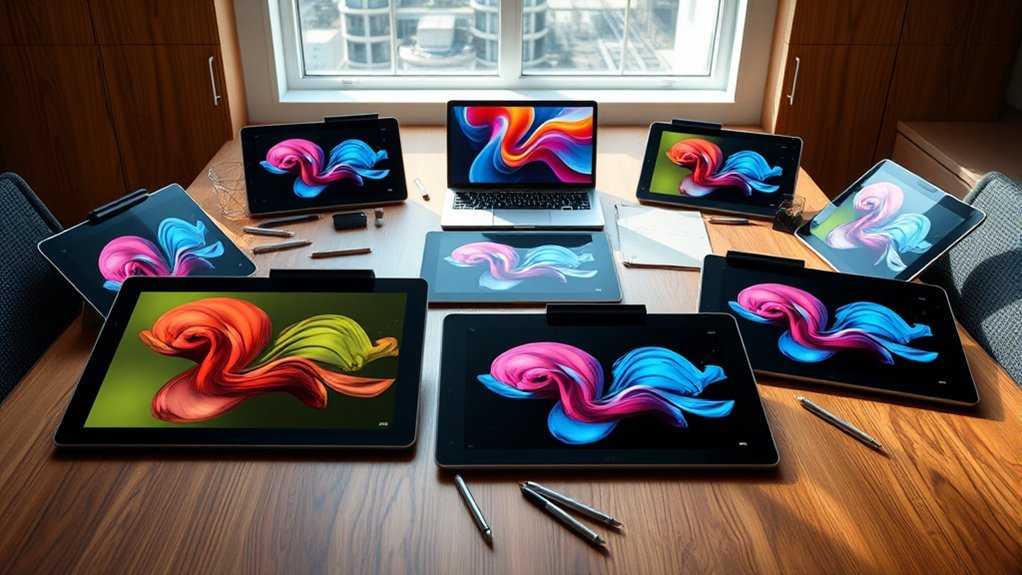
If you want a drawing tablet that pairs effortlessly with your MacBook Pro in 2026, consider options like the Wacom Intuos Small for portability.
The XPPen Deco 01 V3 is great for precision with 16,384 pressure levels.
The HUION Inspiroy H1060P offers a large active area.
Tablets like the XP-PEN Artist 13.3 Pro V2 come with vibrant displays.
Others focus on workflow customization and seamless connectivity.
Take some time to explore these top picks and their features.
You’ll find the perfect fit for your creative workflow in no time!
Wacom Intuos Small Graphics Drawing Tablet, Black
The Wacom Intuos Small Graphics Drawing Tablet offers a compact and efficient solution for digital artists and designers. Its 7-inch active surface provides a natural drawing experience, enhanced by the battery-free pen with 4096 pressure sensitivity levels. This allows for precise and smooth strokes, making it easier to bring creative ideas to life.
Designed for seamless compatibility, the tablet connects via USB-A and supports macOS 10.11 or later. Its plug-and-play setup means you can start working quickly without complex installations. The inclusion of four customizable ExpressKeys enables faster access to your favorite shortcuts, improving workflow efficiency.
Maintenance is simple due to its durable build and battery-free pen, eliminating concerns about charging or replacing batteries. The tablet’s sleek black design is lightweight and portable, ideal for use in different environments, whether at home or on the go.
Included software and training resources support skill development, helping both beginners and professionals enhance their digital art techniques. However, the smaller active area may feel limiting for users needing more drawing space, and USB-A connectivity may require adapters for newer devices.
Best for: Creative professionals and beginners seeking a compact, easy-to-use digital drawing tablet compatible with MacBook Pro and other major operating systems.
What We Like:
- Precise battery-free pen with 4096 pressure sensitivity levels
- Four customizable ExpressKeys for improved workflow
- Plug-and-play USB-A connection for easy setup
- Lightweight and durable design for portability
- Included software and training resources for skill-building
What We Don’t Like:
- USB-A connection may need adapters for newer USB-C devices
- Small 7-inch active surface may limit drawing space
- Not compatible with Windows 10 S, reducing usability on some systems
XPPen Deco 01 V3 Drawing Tablet with Stylus
The XPPen Deco 01 V3 offers a large, responsive drawing surface designed to enhance your creative workflow on macOS devices. Its expansive 10 x 6.25-inch active area provides ample room for detailed work without feeling cumbersome. This tablet is lightweight and portable, making it easy to carry between home, school, or the studio.
Equipped with a battery-free stylus, it delivers 16,384 pressure levels and tilt sensitivity, allowing for precise and natural line control. This feature helps digital artists achieve smooth, accurate strokes that mimic traditional drawing tools. The stylus requires no charging, which simplifies maintenance and ensures uninterrupted creativity.
The tablet includes eight customizable shortcut keys that can be tailored for both right- and left-handed users. These shortcuts improve efficiency by giving quick access to frequently used functions. Its USB-C connection ensures a stable link to your MacBook Pro or compatible devices, although some older hardware might need an adapter.
While the Deco 01 V3 lacks a built-in display, it integrates well with external screens for a seamless drawing experience. Its sleek design is both functional and comfortable, complemented by included accessories like a drawing glove and stylus stand. This setup helps reduce fatigue during extended use.
Best for: digital artists, students, and creators who need a large, portable drawing tablet with precise stylus control and strong macOS compatibility.
What We Like:
- Large active area for detailed digital artwork
- Battery-free stylus with high pressure sensitivity and tilt support
- Customizable shortcut keys for improved workflow
- USB-C connectivity for stable device integration
- Includes useful accessories for comfort and convenience
What We Don’t Like:
- USB-C connection may require adapters for older devices
- No integrated display, requiring use with an external monitor
- Limited thickness options may not appeal to users wanting a more robust tablet body
HUION Inspiroy H1060P Digital Drawing Tablet
The HUION Inspiroy H1060P is designed to enhance creativity with a spacious 10 x 6.25-inch active drawing area that provides ample room for detailed work. Its slim 10mm profile and lightweight build make it easy to carry, perfect for artists who need a portable solution. This tablet seamlessly fits into your mobile workspace, helping you stay productive on the go.
Equipped with the battery-free PW100 stylus, it offers 8192 pressure levels and ±60° tilt support, allowing for precise and natural brush strokes. The stylus eliminates the hassle of charging, ensuring you can focus on your artwork without interruptions.
Customization is made simple with 12 programmable shortcut keys and 16 soft keys, helping streamline your workflow. The tablet supports macOS compatibility via a USB adapter and works with major design software, making it flexible for diverse creative needs.
Maintenance is straightforward since the tablet’s minimalistic design has no moving parts, reducing wear and tear. While it does not feature a display, this non-screen design keeps the device lightweight and affordable, though it requires users to look at their monitor while drawing.
Best for: Artists and designers seeking a portable, customizable drawing tablet compatible with macOS and professional creative software.
What We Like:
- Large active drawing area with a slim, portable design
- Battery-free stylus with high pressure sensitivity and tilt support
- Customizable shortcut and soft keys for efficient workflow
What We Don’t Like:
- Requires a USB adapter for Mac connectivity
- Non-display surface means no direct on-tablet viewing
- Standard 1-year warranty period
HUION Inspiroy 2 Small Digital Drawing Tablet Pink
The HUION Inspiroy 2 Small Digital Drawing Tablet Pink offers a compact and precise drawing solution for artists who need portability without compromising control. Its small active area is designed for users who often work on the move or in limited spaces.
The tablet’s PenTech 3.0 stylus delivers 8192 pressure levels, providing smooth, natural strokes with minimal lag. This makes it easier to create detailed artwork and maintain accuracy in every line. The ergonomic design of the stylus also reduces hand fatigue during long sessions.
With six programmable keys and a scroll wheel, the device enhances workflow by allowing quick access to frequently used functions. It connects via USB-C and is compatible with MacBook Pro and other systems, supporting popular creative apps like Photoshop and OneNote.
Maintenance is straightforward since the tablet requires no batteries or charging. However, it must remain connected to a power source through the USB-C cable during use. While the lack of a built-in screen means drawing is done by looking at an external monitor, this design helps keep the tablet lightweight and portable.
Best for: creatives and digital artists seeking a portable, precise, and ergonomic drawing tablet compatible with multiple devices and operating systems.
What We Like:
- Lightweight and compact design for easy portability
- PenTech 3.0 stylus with high pressure sensitivity for accurate drawing
- Customizable shortcut keys and scroll wheel for efficient workflow
What We Don’t Like:
- No built-in display; drawing requires an external monitor
- Must be connected via USB-C cable with no internal battery
- Smaller active area may feel limiting for users used to larger tablets
XPPen G430S Drawing Tablet with Battery-Free Stylus
Experience precise digital drawing with the XPPen G430S, a compact tablet designed for users who need accurate control in a small form. Its 4 x 3-inch active area provides ample space for smooth, responsive strokes, making it ideal for detailed artwork and note-taking.
The battery-free stylus offers 8192 pressure levels, allowing natural pen-like sensitivity without the hassle of charging. Its ultra-thin 2mm design fits comfortably in your hand or bag, enhancing portability for on-the-go creativity or work.
This tablet supports macOS 10.10 and later, though MacBook Pro users might require an OTG adapter and some driver setup during installation. It works seamlessly with popular applications like Microsoft Office, Zoom, and OSU!, extending its functionality beyond just art.
Maintenance is simple, with durable nibs included and easy replacement using the supplied pen clipper. The minimalist design ensures hassle-free upkeep, while the responsive surface promotes smooth operation over time.
Best for: MacBook Pro users and digital creatives seeking a compact, ultra-thin drawing tablet with precise pressure sensitivity for art, gameplay, and note-taking.
What We Like:
- Battery-free stylus with 8192 pressure sensitivity levels for precise control
- Ultra-thin 2mm design enhances portability and ease of use
- Compatible with macOS 10.10+ and Windows, supporting diverse applications
What We Don’t Like:
- Requires OTG adapter and driver configuration for Mac users
- Small active area (4 x 3 inches) may limit detailed or large-scale projects
- Not compatible with iOS or iPadOS devices, restricting use on Apple tablets and phones
Wacom Intuos Pro Medium Bluetooth Drawing Tablet 2025
Experience precise and responsive digital drawing with the Wacom Intuos Pro Medium Bluetooth, designed to elevate your creative projects. Its advanced Pro Pen 3 offers 8192 pressure levels and tilt recognition, allowing you to create detailed and natural strokes effortlessly.
The tablet’s high resolution of 5080 LPI ensures every line is captured with accuracy, reducing frustration from lag or imprecision. You can easily switch between Bluetooth and USB-C connectivity, making it adaptable to different work environments and devices.
Built with a sleek magnesium body, the tablet provides durability while maintaining a comfortable grip with adjustable sides. Its medium size offers ample workspace without overwhelming your desk, balancing portability with functionality.
Maintenance is straightforward, with a robust design that withstands daily use while keeping your creative flow uninterrupted. Customizable ExpressKeys and mechanical dials enhance workflow efficiency by putting essential controls at your fingertips.
Best for: professional artists, designers, and animators who need a reliable, precise, and versatile drawing tablet compatible with both Mac and Windows systems.
What We Like:
- High precision with 8192 pressure sensitivity levels and tilt support.
- Flexible Bluetooth and USB-C connectivity for seamless device switching.
- Durable magnesium body with adjustable grips for comfort.
- Customizable ExpressKeys and dials improve workflow efficiency.
What We Don’t Like:
- Medium size may be less portable for frequent travelers.
- Requires macOS 13 or Windows 10 or later, limiting older system compatibility.
- Premium features come with a higher price than basic tablets.
XPPen Artist 15.6 Pro V2 Drawing Tablet
The XPPen Artist 15.6 Pro V2 is designed to bring precision and control to your creative projects. Its high pressure sensitivity and tilt support ensure every stroke feels natural and accurate, helping you capture fine details with ease.
The tablet’s 15.4-inch laminated, anti-glare screen offers vibrant, true-to-life colors with 99% sRGB and 96% Adobe RGB coverage. This reduces eye strain and maintains color accuracy, so your work looks exactly as intended.
With 8 customizable shortcut keys and a Red Dial, you can quickly adjust settings and streamline your workflow. The slim, ergonomic design supports long sessions comfortably, reducing fatigue.
Maintaining the tablet is straightforward, thanks to its durable build and easy-to-clean surface. It connects seamlessly to major software like Photoshop via a 3-in-1 cable, making setup simple for MacBook Pro and other compatible devices.
Best for: digital artists and designers who need a highly responsive drawing tablet with precise color accuracy and customizable controls for both professional and hobbyist work.
What We Like:
- Precise strokes with 16,384 pressure levels and 60° tilt support
- Vivid color display covering 99% sRGB and 96% Adobe RGB
- Customizable shortcut keys and Red Dial for efficient workflow
What We Don’t Like:
- Requires connection to a computer, limiting standalone use
- Heavier weight at approximately 3.66 kg reduces portability
- Screen brightness of 250 cd/m² may be low in bright environments
XP-PEN Artist 13.3 Pro V2 Drawing Tablet
The XP-PEN Artist 13.3 Pro V2 offers a vibrant and precise drawing experience for creative professionals. Its fully laminated 13.3-inch screen delivers sharp 1920×1080 resolution with 99% sRGB and 95% P3 color gamut. This ensures your artwork appears true to life, making color-critical projects easier and more accurate.
Designed with portability and durability in mind, the tablet features a sleek metal back and lightweight frame. USB-C connectivity simplifies setup and reduces cable clutter. Maintenance is straightforward thanks to the tablet’s robust build and included accessories, such as a foldable stand and artist glove, which help protect the device and enhance comfort during long sessions.
The X3 Pro stylus supports 16,384 pressure levels for precise control and natural strokes. Customizable shortcut keys and a red dial roller further streamline your workflow, allowing for quick access to essential functions. However, keep in mind that HDMI connectivity requires a separate 3-in-1 cable, which may add to your setup cost.
While the compact 13.3-inch screen suits users on the go, it may feel small for those used to larger displays. Additionally, Pen Tablet mode disables the screen display, which might interrupt visual feedback for some workflows.
Best for: Digital artists, designers, and creative professionals seeking a portable, color-accurate drawing tablet with high pressure sensitivity and versatile connectivity options.
What We Like:
- Vibrant, true-to-life color display with wide color gamut on a fully laminated screen
- Highly precise X3 Pro stylus with 16,384 pressure levels and customizable shortcuts
- Durable, lightweight metal design with USB-C single-cable connection
- Includes useful accessories like a foldable stand and artist glove
What We Don’t Like:
- Requires a separate 3-in-1 cable for HDMI connectivity
- Screen size limited to 13.3 inches, which may feel small for some users
- Pen Tablet mode disables screen display, disrupting visual feedback for some workflows
GAOMON M10K 10×6 Inch Drawing Tablet
If you’re looking for a drawing tablet that offers a large and natural-feeling surface, the GAOMON M10K is a strong choice. Its 10 x 6.25-inch textured area closely resembles real paper, allowing for a more intuitive pen-on-paper experience. This makes it easier to create precise and detailed artwork.
The tablet’s design includes 10 customizable hotkeys and a touch ring, helping to streamline your workflow. These features let you quickly zoom, scroll, or access shortcuts, reducing the need to switch between devices. The battery-free stylus with 8192 pressure levels ensures responsive and accurate strokes for all types of creative work.
Maintenance is straightforward, but the tablet requires driver installation and occasional driver updates or removals to maintain full compatibility. It works well with macOS 10.12 and later and supports popular creative apps like Photoshop and Krita, making it a practical tool for digital artists.
While it offers excellent functionality, the GAOMON M10K does not support advanced features like multi-touch gestures. Additionally, its compatibility with Android devices is limited to versions 11 through 14, which may restrict use for some mobile users.
Best for: creative professionals and students who need a large, precise drawing surface compatible with MacBook Pro and common graphic software.
What We Like:
- Large textured surface that mimics real paper feel
- Customizable hotkeys and touch ring for efficient workflow
- Battery-free stylus with high pressure sensitivity
What We Don’t Like:
- Requires driver installation and occasional driver management
- Limited Android compatibility (versions 11 to 14 only)
- Lacks advanced features like multi-touch gesture support
UGEE M708 Large Drawing Tablet with Stylus
The UGEE M708 offers a large, responsive drawing surface that enhances detailed creative work. Its 10 x 6 inch active area features a papery texture that mimics the feel of traditional drawing paper. This allows for smooth, natural strokes, making it easier to create precise artwork with confidence.
Designed to improve control and accuracy, the stylus supports 16,384 pressure levels and 60° tilt recognition. This combination allows artists to vary line weight and opacity intuitively. The tablet’s customizable shortcut keys streamline workflow, letting users access common commands quickly.
The UGEE M708 is compatible with macOS and major creative software, connecting easily via USB-C. While it lacks a built-in screen, it pairs well with laptops and monitors, including the MacBook Pro. Its sturdy build suits both left- and right-handed users, though its weight may affect portability.
Maintenance is straightforward; the tablet’s surface resists wear, but using the included pen nib replacements helps preserve drawing feel. Overall, it’s a reliable tool for artists seeking precision and a natural drawing experience.
Best for: artists, designers, and students needing a large, precise drawing tablet with customizable controls for creative work on macOS and other platforms.
What We Like:
- Large 10 x 6 inch active area with a natural, papery texture
- High sensitivity with 16,384 pressure levels and 60° tilt support
- Customizable shortcut keys to enhance workflow efficiency
- Easy USB-C connectivity compatible with major creative software
What We Don’t Like:
- Heavier than some alternatives, affecting portability
- Requires a wired USB connection, limiting wireless use
- No built-in display; users must view their work on a separate screen
Factors to Consider When Choosing a Drawing Tablet for MacBook Pro
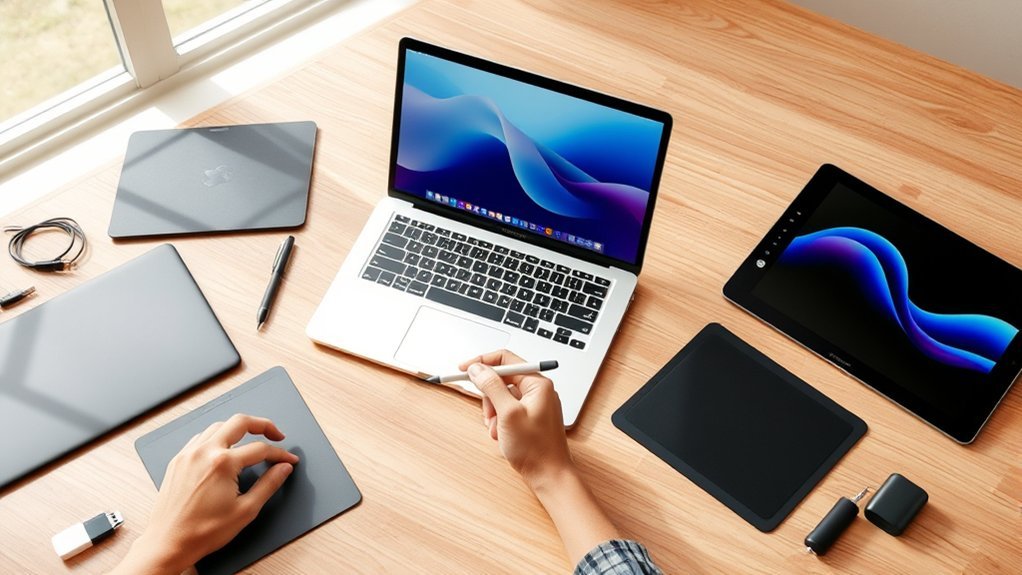
When choosing a drawing tablet for your MacBook Pro, you’ll want to check if it’s fully compatible with macOS. Make sure it works smoothly with your system to avoid any hiccups.
Pay attention to pressure sensitivity levels and the active drawing area to guarantee precise control and comfort. These features really make a difference when you’re sketching or designing.
Also, consider stylus features and how the tablet connects to your laptop. Finding the right setup can help match your workflow perfectly.
Operating System Compatibility
Although many drawing tablets work across various systems, ensuring your device is fully compatible with macOS is essential for a smooth experience on your MacBook Pro. Start by confirming the tablet explicitly supports macOS 10.12 or later to avoid integration issues.
Also, check if the drivers and software receive regular updates to keep pace with the latest Mac OS versions. This helps ensure optimal performance.
Make sure the tablet connects through USB-C or Thunderbolt, matching your MacBook Pro’s ports. If not, be ready to use adapters.
Full macOS driver support is vital—it unlocks customizable shortcut keys, pressure sensitivity, and tilt functions. These features really enhance your workflow.
Pressure Sensitivity Levels
Since pressure sensitivity directly affects how your strokes respond to your touch, it plays an essential role in choosing a drawing tablet for your MacBook Pro. Higher pressure sensitivity levels, like 8192 or 16,384, let you achieve more nuanced, natural strokes, giving you finer control over line thickness and opacity.
This precision is fundamental for creating detailed shading and realistic coloring. If you prefer customizing, look for tablets that let you adjust sensitivity settings to match your style.
Professional artists especially benefit from high pressure sensitivity, as it enables subtle variations and exact control. Choosing a tablet with superior pressure sensitivity will elevate your digital art, making your creative process smoother and your results more lifelike.
Active Drawing Area
Choosing the right active drawing area can greatly impact your workflow and comfort while using a drawing tablet with your MacBook Pro. The active drawing area defines how much space you have to create, influencing your ability to work on detailed or large-scale projects.
Larger surfaces, like 10×6 inches or more, offer ample room for freehand drawing. This reduces the need to zoom or pan constantly. But keep in mind, they usually come at a higher price and demand more desk space.
Smaller areas, such as 6×4 inches, are more portable and fit tighter spaces. However, they might restrict detailed work. So, match the active drawing area to your typical project size and workspace to maintain efficiency without overspending or compromising comfort.
Stylus Technology Features
Beyond the active drawing area, the stylus technology plays a significant role in how well your drawing tablet performs with your MacBook Pro. You’ll want a stylus with high pressure sensitivity, like 16,384 levels, for precise and nuanced control over every stroke.
Battery-free styluses, using EMR technology, are a smart choice since they don’t need charging, letting you work uninterrupted. Tilt support is essential if you want to create natural shading and brush effects by detecting your pen’s angle.
Look for programmable buttons on the stylus to speed up your workflow by giving quick access to frequently used functions. Finally, consider the stylus tip material and design, as they affect tactile feedback and line smoothness, making your drawing experience more enjoyable and accurate.
Connectivity Options Available
How do you guarantee your drawing tablet connects smoothly with your MacBook Pro? First, make sure it supports USB-C, matching your MacBook’s latest ports for hassle-free wired connections.
If you prefer a cable-free setup, check for reliable Bluetooth connectivity that pairs effortlessly with your MacBook Pro. Also, verify if the tablet includes essential adapters like USB-C to USB-A or HDMI, which can save you from compatibility headaches.
Consider whether the tablet supports full-lamination or anti-glare technologies, as these features often hinge on the connection type to deliver ideal display quality. Finally, think about power options: does the tablet rely solely on USB power, or can it use external sources?
This choice impacts both portability and your workspace flexibility, so choose what fits your workflow best.
Customizable Shortcut Keys
Once your drawing tablet connects effortlessly to your MacBook Pro, the next feature to explore is customizable shortcut keys. These keys let you assign frequently used functions, speeding up your workflow and cutting down on keyboard use.
Most tablets offer between 8 to 16 programmable keys, so you can tailor them to your creative style. With well-set shortcuts, you’ll handle tasks like undoing, zooming, switching tools, or adjusting brush sizes with a single press.
This customization not only boosts efficiency but also reduces repetitive motions, easing hand strain during long sessions. Just make sure the tablet’s software and drivers support your preferred design apps, so your shortcuts work smoothly across all platforms you use.
Portability and Weight
When you’re choosing a drawing tablet for your MacBook Pro, portability and weight play essential roles in your daily creative routine. Lighter tablets, generally under 1 kilogram, are easier to carry and prevent fatigue during long sessions.
A compact size and slim profile make the tablet less cumbersome, fitting effortlessly into your backpack or laptop bag alongside your MacBook Pro. Many portable models offer foldable stands or detachable cables, boosting mobility and convenience.
If you often work on the go, these features ensure your setup stays streamlined without extra bulk. Prioritizing a lightweight, compact tablet lets you focus on creativity without worrying about carrying heavy gear or awkwardly sized devices slowing you down.
Included Software Support
Why should you pay close attention to the software support included with your drawing tablet? Because compatibility with macOS is essential for seamless operation with your creative tools. You want a tablet that not only works smoothly with your favorite drawing or editing apps but also comes bundled with software licenses or free trials to kickstart your projects.
Make sure the included software supports pressure sensitivity and tilt functions to give you that natural, precise drawing experience. It really makes a difference when your tablet responds exactly how you expect it to.
Additionally, check if the manufacturer offers regular updates and access to online tutorials. This way, you can keep improving your skills without any hassle.
Finally, confirm the tablet’s drivers integrate effortlessly with your preferred applications. You definitely want to avoid frustrating glitches and keep your creative flow uninterrupted.
Frequently Asked Questions
Can Drawing Tablets Be Used With Other Devices Besides Macbook Pro?
Yes, you can use drawing tablets with other devices like Windows PCs, iPads, and some Android tablets. Just make sure the tablet’s compatible, and you’ll enjoy smooth drawing across multiple platforms without any hassle.
It’s pretty flexible, really. So whether you’re team Apple or Android, there’s usually a way to get your tablet working. Just double-check compatibility before you buy, and you’re good to go!
What Software Is Best for Drawing on Macbook Pro Tablets?
You’ll love using Procreate, Adobe Photoshop, or Clip Studio Paint for drawing on MacBook Pro tablets. They offer powerful tools, smooth performance, and great compatibility.
These apps make your creative process efficient and enjoyable. Plus, they’re pretty user-friendly, so you can focus more on your art and less on figuring out how the software works.
How Do I Calibrate a Drawing Tablet With My Macbook Pro?
You’ll connect your tablet, open its driver software, and find the calibration section. Follow the on-screen prompts to align the pen with the screen.
Then, adjust pressure and cursor settings until it feels natural for you. It’s all about making sure the pen responds just right for your drawing style.
Are There Any Warranty Differences for Tablets Bought in 2026?
Yes, warranty terms can differ in 2026 depending on the brand and retailer. You’ll want to check for updates on coverage length, accidental damage protection, and international support before buying your tablet.
It’s always a good idea to do a quick comparison. That way, you avoid any surprises later on.
Can I Use a Drawing Tablet for Video Editing on Macbook Pro?
Yes, you can use a drawing tablet for video editing on your MacBook Pro. It lets you navigate timelines, apply effects, and make precise adjustments more intuitively than a mouse.
This can really boost your overall editing efficiency and control. Plus, it feels more natural when you’re working on detailed edits.
Conclusion
Choosing the right drawing tablet for your MacBook Pro can really boost your creativity and productivity. Whether you want something compact like the Wacom Intuos Small or a larger screen like the XP-PEN Artist 13.3 Pro V2, there’s an option tailored just for you.
Keep in mind important factors like pressure sensitivity, compatibility, and your budget when making a choice. Finding the perfect match will make all the difference.
With the right tablet in hand, you’ll bring your artistic vision to life effortlessly. It’s all about picking what feels right for you and your workflow.

- Best Commercial Label Printer: Top Picks You Can’t Miss! - September 19, 2026
- Top Tricks to Choose the Best Colour Label Printer Today! - September 19, 2026
- Discover the Best Color Multifunction Printer Today! - September 19, 2026
